

Rust server with plugins: Oxide or Carbon
With this guide, you turn your Rust server into a server with plugins: kits, teleport, clans or better admin tools. In the panel, you enable Oxide or Carbon with one click, install plugins directly from umod.org, and manage players without an RCON program.
What you need
- A Rust server at AeonHost. Rust needs at least 12 GB RAM; with many plugins and large maps, you'll likely need more. Choose Rust in the configurator, in the Game section.
- Your SteamID64, if you want to give yourself admin rights.
- A backup before you change plugins or the framework.
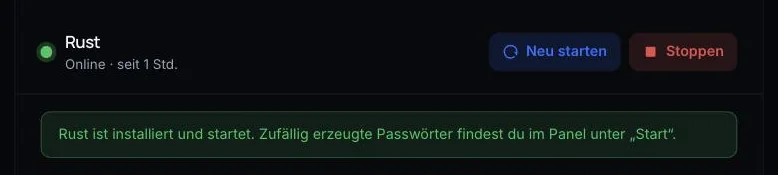
1. Oxide or Carbon?
Rust plugins need a framework that loads them. The panel offers two options:
- Oxide (uMod) – the classic. Almost all plugins on umod.org are written for it.
- Carbon – more modern and faster. Carbon loads the same Oxide plugins, but its commands start with
c.instead ofo.(Carbon docs).
Important: Oxide and Carbon must never be installed at the same time – that breaks the server. So choose one. If you're unsure, go with Oxide.
2. Enable the framework
- In the customer area, click Open in Panel on your server's page and select Plugins on the left.
- If your server is still running without a plugin system, you'll see Plugins einschalten (enable plugins) with the Oxide (uMod) and Carbon cards. Click Einschalten (enable) for your choice.
- Restart the server. On startup, the framework is installed automatically, and your world is kept.
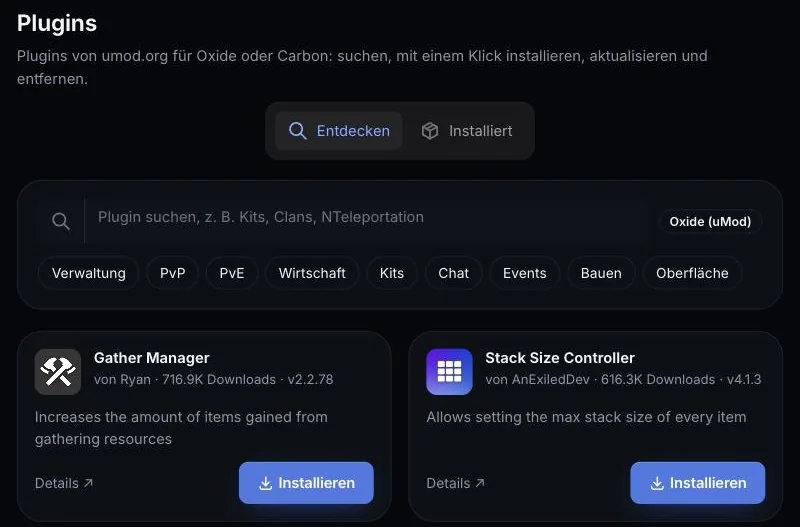
Afterwards, under Startup, the Modding Framework field shows oxide or carbon. vanilla means: no plugins.
Don't simply switch from Oxide to Carbon (or back) later via this field: the server files first need to be clean again, otherwise both would run at the same time. Make a backup and contact support – we'll help you with the move.
3. Install plugins
- Open Plugins and switch to Entdecken (discover).
- Search for a plugin, for example “Kits”, or browse the Kategorien (categories).
- Click Installieren (install).
If the server is running, Oxide or Carbon loads the plugin immediately – no restart needed. Under Installiert (installed), you see all plugins with their version. Use Nach Updates suchen (check for updates) to see whether new versions are available, and apply them with Aktualisieren (update). Entfernen (remove) deletes the plugin file; its settings are kept.
Plugins marked „Wird nicht mehr gepflegt“ (no longer maintained) often stop working after Rust updates. Better choose a maintained alternative.
4. Configure plugins
Most plugins create a configuration file the first time they load. You'll find it in the panel under Files:
- for Oxide, in
oxide/config, - for Carbon, in
carbon/configs.
Edit the file, then reload the plugin in the Console: on Oxide with o.reload PluginName, on Carbon with c.reload PluginName. A restart also reloads everything. When editing, make sure the JSON is valid – a missing comma stops the plugin from loading.
5. Grant permissions
Many plugins work with permissions. A command only works once a player or their group has the matching permission. You'll find the permission's name on the plugin's page under „Details ↗“.
This is what it looks like in the Console (replace the SteamID64 and the permission name):
| Task | Oxide | Carbon |
|---|---|---|
| Permission for a player | o.grant user 7656119… kits.use |
c.grant user 7656119… kits.use |
| Permission for a group | o.grant group vip kits.use |
c.grant group vip kits.use |
| Create a group | o.group add vip |
c.group add vip |
| Add a player to a group | o.usergroup add 7656119… vip |
c.usergroup add 7656119… vip |
| Revoke a permission | o.revoke user 7656119… kits.use |
c.revoke user 7656119… kits.use |
If you enter c.grant on Carbon without arguments, Carbon shows you the exact syntax. For Oxide, everything is in the uMod permissions documentation. Where possible, grant permissions to groups rather than individual players – that keeps things tidy.
Admin in the Rust sense (owner/moderator) is something different from plugin permissions. You set that up with ownerid: Owner and moderator rights in Rust.
6. Manage players without an RCON program
In the Spieler (Players) menu, you see who is online. You can kicken (kick), sperren (ban) and entsperren (unban) players, send a Nachricht an alle (message to all), or save immediately with Welt speichern (save world).
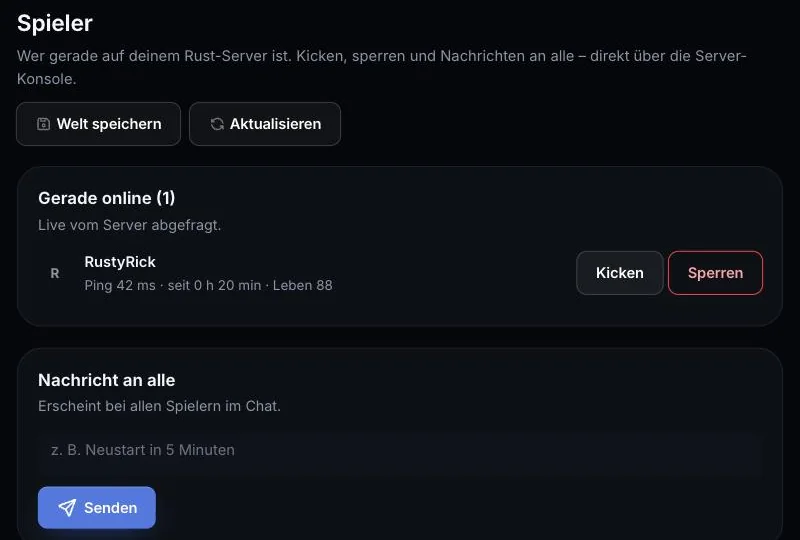
This page uses RCON, which AeonHost set up with a random password during setup. You'll find the RCON Password under Startup. If you need it for an external tool, treat it like an admin password: Protecting the RCON console.
7. Server name, map and connecting
Under Startup, you set Server Name, Description, World Size and World Seed. If you change the size or seed, the server generates a new map on its next start – that's a map wipe. More on this: Map wipe and blueprint wipe.
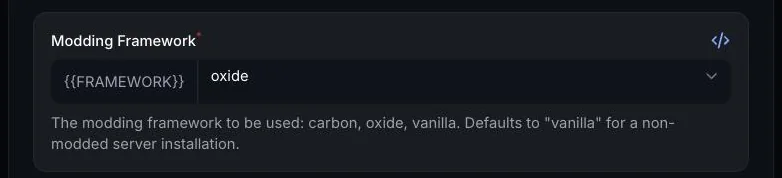
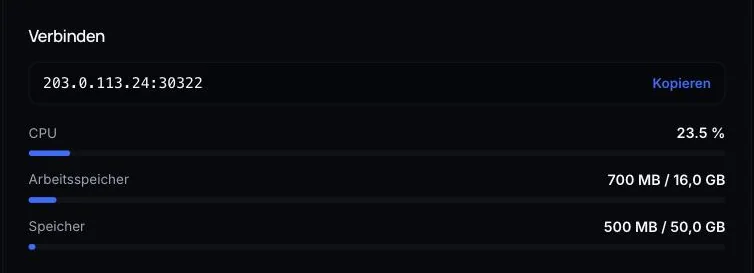
To connect, copy the address from the Connect card in Quick controls, open the console in Rust with F1, and enter client.connect IP:Port.
Common problems
A plugin is installed but does nothing
Check the Console for an error when the plugin loads. o.plugins or c.plugins shows all loaded plugins. If a command only fails for you, the matching permission is usually missing (step 5).
Plugins stop loading after a Rust update
A big Rust update usually comes out on the first Thursday of the month. The framework and plugins then often need an update too. Restart the server (Oxide or Carbon is updated in the process) and click Nach Updates suchen under Plugins.
The server won't start after a plugin change
Check the console to see which plugin causes the error, then remove it under Plugins or move its file out of the oxide/plugins or carbon/plugins folder under Files. If necessary, restore the last backup.
My o. command doesn't work
On Carbon, all commands start with c.. Check under Startup which framework is running.
Further reading
Did this guide help? We are happy to help personally.