

Change your Minecraft server version and software
With this guide, you switch the software or the Minecraft version on your Minecraft server – for example from Vanilla to Paper, from Paper to Fabric, or to the latest update. At AeonHost, that takes three clicks in the panel: the panel sets the matching Java version itself, and worlds, plugins, mods and settings are kept.
What you need
- A Minecraft Java server at AeonHost.
- A backup as a way back – you create it with one click in step 3.
- A look at your plugins or mods: are they available for the target version? This is stated on their project page.
1. Choose the right software
In the customer area, on your server's page, click Open in Panel and select Version on the left. Under 1. Software wählen (1. choose software), the following options are available:
| Software | Used for | Good to know |
|---|---|---|
| Paper | Plugins | Fast and stable – the best choice for most servers. |
| Purpur | Plugins | Paper with many additional settings. |
| Folia | Plugins | Paper for very large servers with many threads. Only a few plugins are compatible. |
| Fabric | Mods | Lightweight and modern, for example for Sodium, Lithium or Create (Fabric). |
| NeoForge | Mods | For current large modpacks and newer Forge mods. |
| Forge | Mods | The classic choice for mods and older modpacks. |
| Vanilla | – | The original from Mojang, without plugins or mods. |
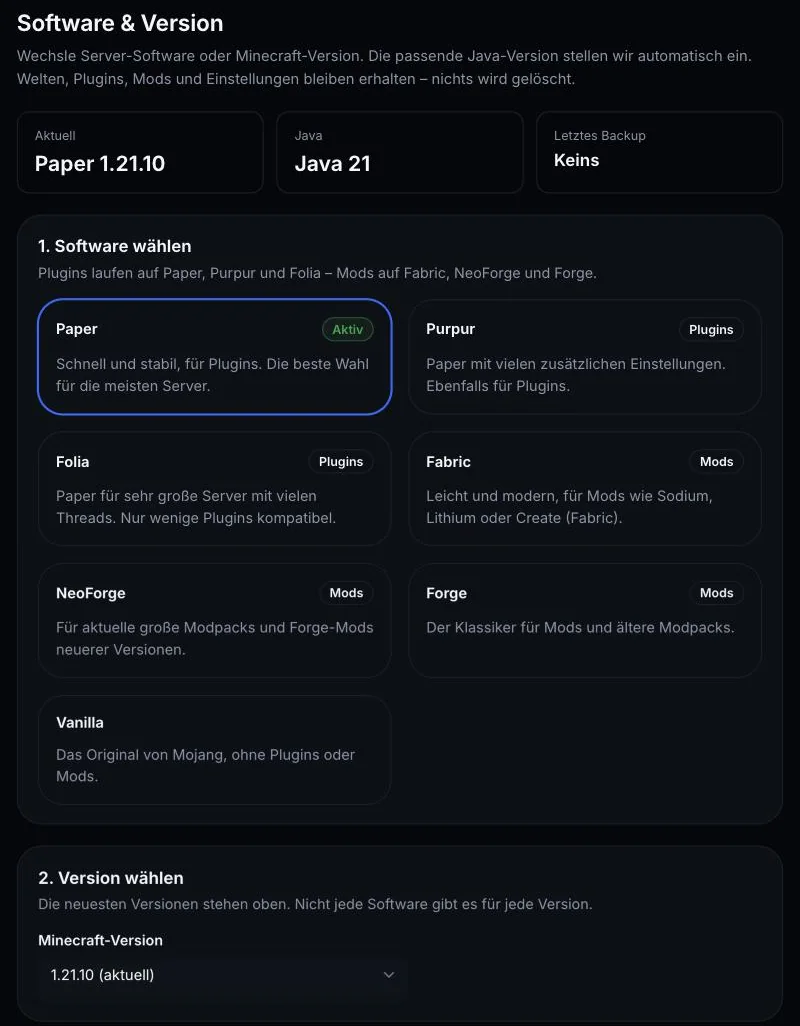
Important: plugins and mods are not interchangeable. Plugins run on Paper, Purpur and Folia; mods run on Fabric, NeoForge and Forge. If you switch the type of software, your existing extensions no longer load – but they stay in the folder and load again as soon as you switch back. Folia only loads plugins that are explicitly approved for Folia (Folia on GitHub).
Not sure? For plugins, pick Paper; for mods, pick Fabric or NeoForge – depending on which software your favourite mods are released for.
2. Choose the Minecraft version
Under 2. Version wählen (2. choose version), the newest versions are listed at the top. Not every software is available for every version – only what fits together is offered.
- Upgrade (newer version): Your world is converted to the new format on the first start. After that, it can no longer be opened in the old version.
- Downgrade (older version): The panel warns you with „Ältere Version“ (older version). Worlds from newer versions usually can no longer be opened or get damaged. Only do this with a backup – or with a new world.
When upgrading, make sure your players choose the same Minecraft version in their launcher.
3. Confirm the switch
- Click Vorher Backup erstellen (create a backup first). The backup appears under Backups after a few minutes. At the top of the page, Letztes Backup (last backup) shows when the last backup was made.
- Under 3. Wechsel bestätigen (3. confirm switch), the panel shows „Von … auf …“ (From … to …) and the matching notices. Tick the confirmation.
- Click Jetzt wechseln (switch now).
The server stops, is reinstalled with the new software and then starts again. You can follow the Fortschritt (progress) live. Everything you installed under Plugins or Mods automatically gets the matching version. If there is no matching version, it is only switched off – not deleted.
4. Check after the switch
- Check the Console to see whether the server starts without errors. On Paper, "Done" appears at the end.
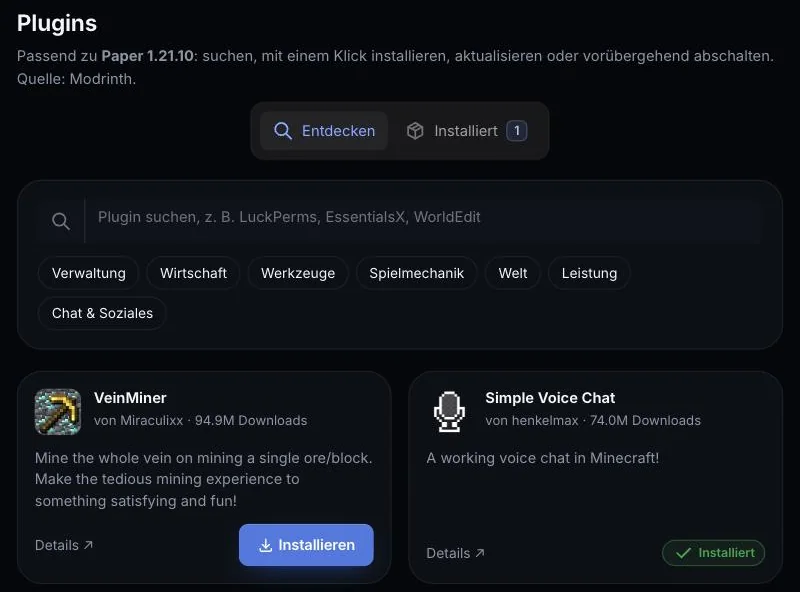
- Open Plugins or Mods and check that everything is active. Switched-off entries have no matching version – look for a replacement or wait for an update.
- Join the server yourself once before you tell your players.
Common problems
The server doesn't start after the switch
Read the last lines in the Console. Usually it's a plugin or mod that doesn't match the new version – switch it off and restart. If that doesn't help, restore the state from before under Backups.
My plugins are gone after switching to Fabric
Fabric loads mods, not plugins. Your plugins remain in the plugins folder and load again when you switch back to Paper. For Fabric, you need matching mods. More on this: Matching mod versions.
The Nether or End is missing after switching from Vanilla to Paper
Paper stores the dimensions in separate folders. How to bring them back: Dimension missing after switching to Paper.
„Keine passende Java-Version verfügbar“ (No matching Java version available)
The panel sets up Java automatically. If this message appears, get in touch with support – we'll take care of it. Background: Which Java version does the server need?
I want to go back to the old version
With an upgrade, the world was converted. So restore the backup from before the switch, rather than just selecting the old version.
Further reading
Did this guide help? We are happy to help personally.