

Switch the game on your game server
At AeonHost, your server isn't tied to a single game. Minecraft today, Valheim next week, then back again: with **Spiel wechseln** (switch game) in the panel, you install a different game on the same server. Your previous files are not deleted in the process; they're archived. Switching back takes one click, including worlds, settings and ports.
What you need
- A game server at AeonHost and access to the panel (in the customer area, on your server's page: Open in Panel).
- A plan with enough memory for the new game (table below).
- For Counter-Strike 2 and Garry's Mod, your own Steam server token (step 3).
- Some free storage space: the archive takes up space until you delete it.
1. Back up first
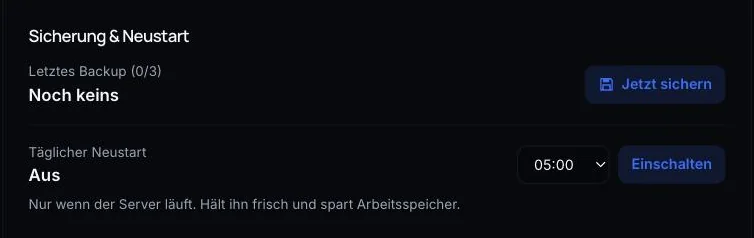
The archive is already a safety net. A backup still doesn't hurt: click Back up now in Quick controls, or create one under Backups in the panel.
2. Choose a game
In the panel, open Spiel wechseln on the left. Under Verfügbare Spiele (available games), you see all games; your current one is marked Aktuell (current). Games that need more memory than your plan has show Tarif zu klein (plan too small).
| Game | Minimum |
|---|---|
| Terraria | 1 GB |
| Minecraft: Java Edition | 2 GB |
| Minecraft: Bedrock Edition | 2 GB |
| Valheim | 4 GB |
| Project Zomboid | 4 GB |
| Garry's Mod | 4 GB |
| Counter-Strike 2 | 8 GB |
| Satisfactory | 8 GB |
| Rust | 12 GB |
| Palworld | 16 GB |
| Enshrouded | 16 GB |
These are minimum values. With many mods, large worlds or many players, you'll need more. You can get more RAM in the customer area via Change plan.
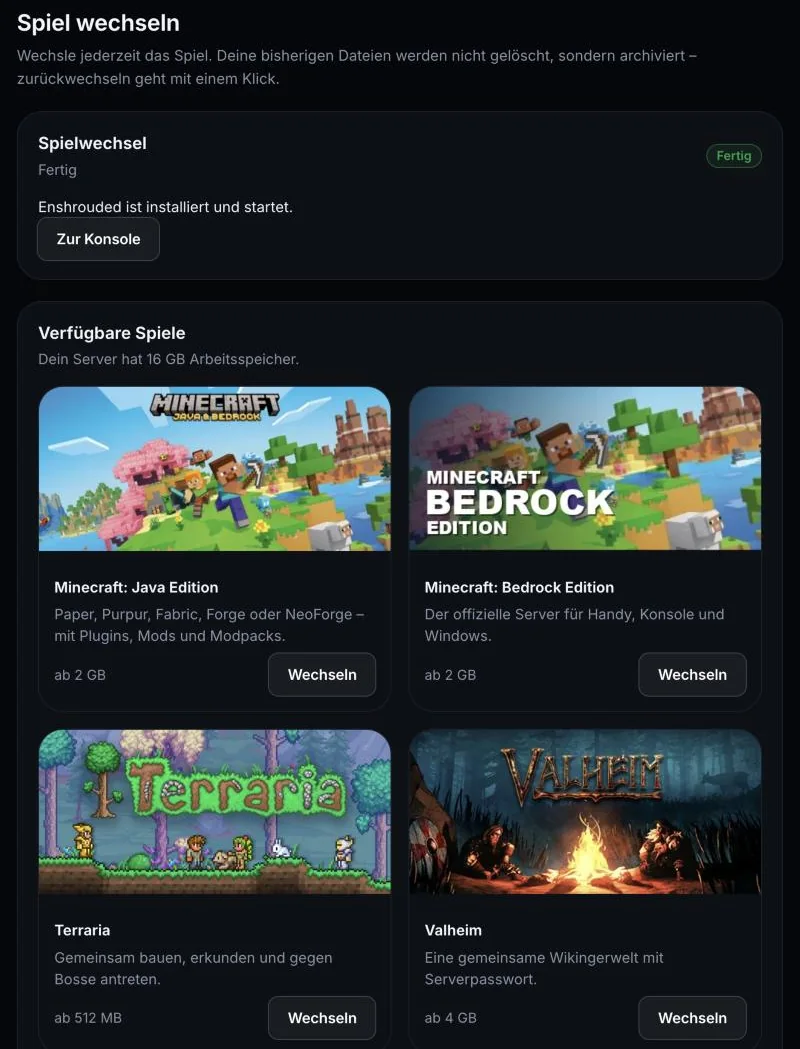
Click Wechseln (switch) next to the game you want.
3. Fill in the details
Depending on the game, the panel may ask for a few more details:
- Passwords – such as the admin password for Palworld or the server password for Valheim – are generated randomly by AeonHost. You can find and change them later under Startup.
- Counter-Strike 2 and Garry's Mod need your own Steam server token (GSLT). You create it for free at steamcommunity.com/dev/managegameservers: App ID
730for CS2,4000for Garry's Mod. The token has 32 characters; each server needs its own. Step by step: Creating a Garry's Mod server and GSLT for CS2.
4. Confirm and switch
Read the notice: all current files are moved to aeon-archiv, and the new game is installed fresh. Tick Verstanden (understood) – the server stops, and AeonHost sets up the ports automatically – then click Jetzt wechseln (switch now).
You can follow the progress live. The server downloads Steam games directly from Steam; this takes a few minutes, depending on the game. If something goes wrong during setup, the panel automatically restores your previous files.
5. Check the new server
- Under Startup, you'll find the settings for the new game – server name, passwords, player count.
- The address is shown on the Connect card in Quick controls. The IP and main port stay the same when you switch – so your fellow players don't need a new address.
- Under Network, you see all ports. Additional ports that a game needs (such as the query port) are already set up.
- Connect once yourself before you let your fellow players know.
For the finer details of each game, there are separate guides, for example for Valheim, Palworld, Enshrouded or Satisfactory.
6. Switch back or delete the archive
Under Archiv (archive), all previous games are listed with their worlds and settings.
- Zurückwechseln (switch back) brings back an earlier game – without reinstalling, with its worlds, settings and ports. In the process, the game that's currently running goes into the archive. So nothing is lost.
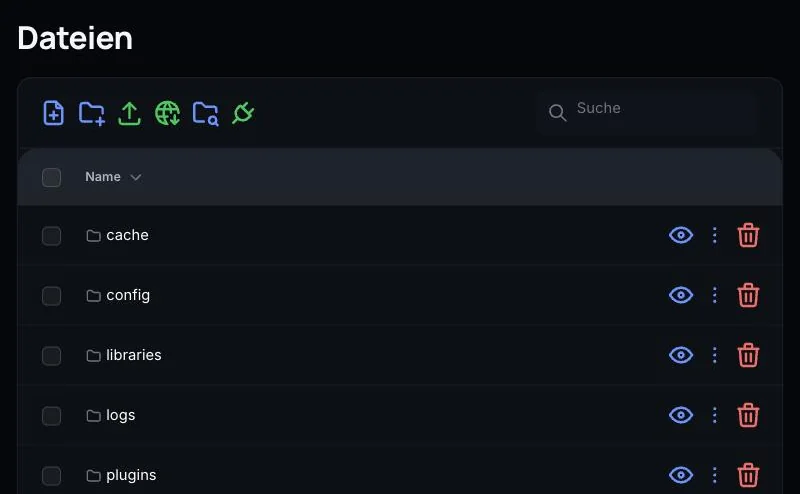
- Löschen (delete) permanently removes an archive and frees up the storage. Download anything you want to keep beforehand – under Files, in the
aeon-archivfolder, or via SFTP.
If you want to set up the same game from scratch instead, use Alles zurücksetzen (reset everything) further down: it deletes all files of the current game and installs it fresh – the archive stays. Keep Vorher Backup erstellen (create a backup first) switched on.
Common problems
The game is locked with „Tarif zu klein“ (plan too small)
The new game needs more memory. Switch to a larger plan in the customer area; afterwards, the game is unlocked.
Storage is almost full
Archives keep taking up space. If storage is 90% full, AeonHost sends you an email. Delete archives you no longer need under Spiel wechseln → Archiv.
The Steam download was interrupted
Steam sometimes cancels downloads when many servers are downloading at the same time. The panel detects this and reports it. Start the reinstall again a few minutes later under Settings.
Garry's Mod or CS2 won't start or doesn't appear in the server list
Check the token under Startup: it must be exactly 32 characters, created with the correct App ID, and not in use on another server.
I only want to change the Minecraft version
You don't need to switch games for that. Under Version, you can change the software and Minecraft version without anything being archived: Changing the Minecraft server version.
Further reading
Did this guide help? We are happy to help personally.