

Install a Modrinth modpack on your Minecraft server
With this guide, you install a modpack from Modrinth – such as Cobblemon, Create or All the Mods – with one click on your Minecraft server. AeonHost sets the loader and Minecraft version automatically, every file is checked against its checksum, and client-only mods such as shaders or minimaps stay off the server.
What you need
- A Minecraft Java server at AeonHost. In the configurator, choose Minecraft: Java Edition for it.
- Enough memory: small packs run with 4 GB; from about 100 mods, 6–8 GB makes sense. For help estimating, see Planning Minecraft server RAM.
- For your players, a launcher that can install Modrinth modpacks, for example the Modrinth App.
1. Find a modpack
In the customer area, on your server's page, click Open in Panel and select Modpacks on the left. Search for the pack's name, or filter by Loader (Fabric, NeoForge or Forge).
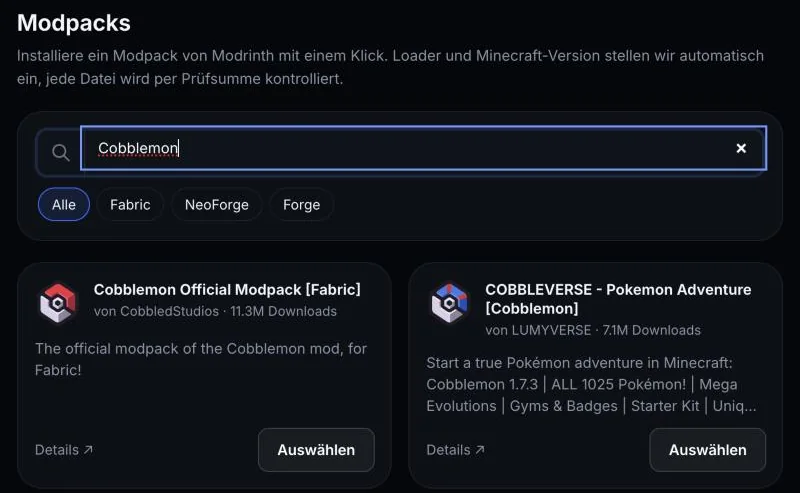
Click Auswählen (select) on the pack you want. Under Details ↗, you open the Modrinth page with the description and changelog.
2. Choose the version and install it
In the next step, choose the pack's Version. The panel shows you its Loader, its Minecraft version and the Download size – and next to it, what Dein Server jetzt (your server now) is using.
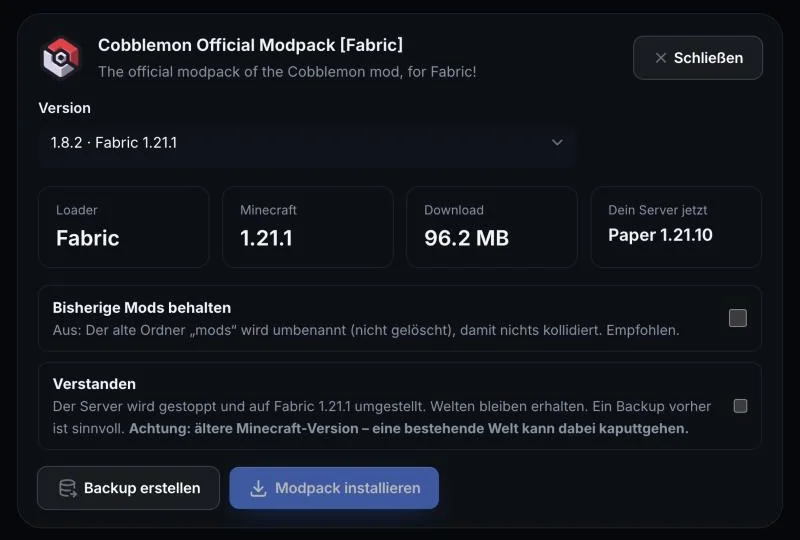
- Click Backup erstellen (create backup). This lets you return to the old state at any time.
- Decide on Bisherige Mods behalten (keep existing mods): Off (recommended) renames the old
modsfolder instead of deleting it – so nothing conflicts with the pack. - Tick Verstanden (understood) and click Modpack installieren (install modpack).
AeonHost now downloads all files, checks their checksums, sets the loader and Minecraft version to match, and applies the pack's configurations. Files the author has marked as „nicht für Server“ (not for servers) are left out by the panel. You can follow the Fortschritt (progress) live.
If the notice „ältere Minecraft-Version“ (older Minecraft version) appears, the pack is older than your server. An existing world can break in that case – it's better to start with a new world.
3. Start the server
Start the server in the Console – in Quick controls or in the panel. If it's starting for the first time, you confirm the Minecraft EULA there. Large packs need a few minutes on first start, because they prepare their world and data.
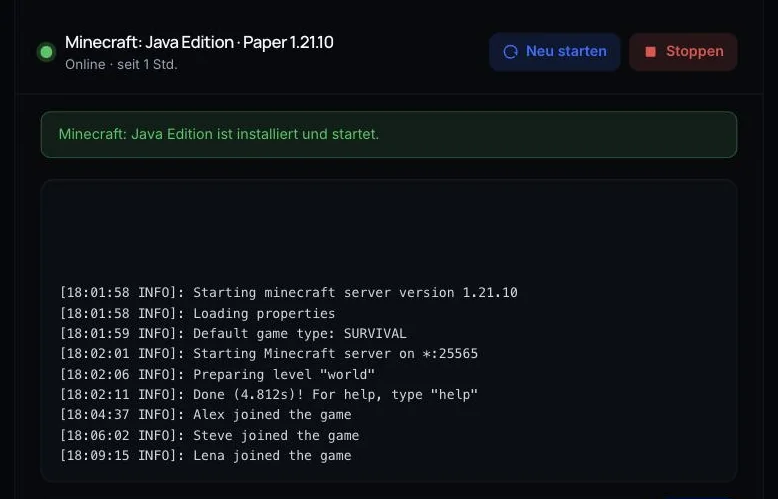
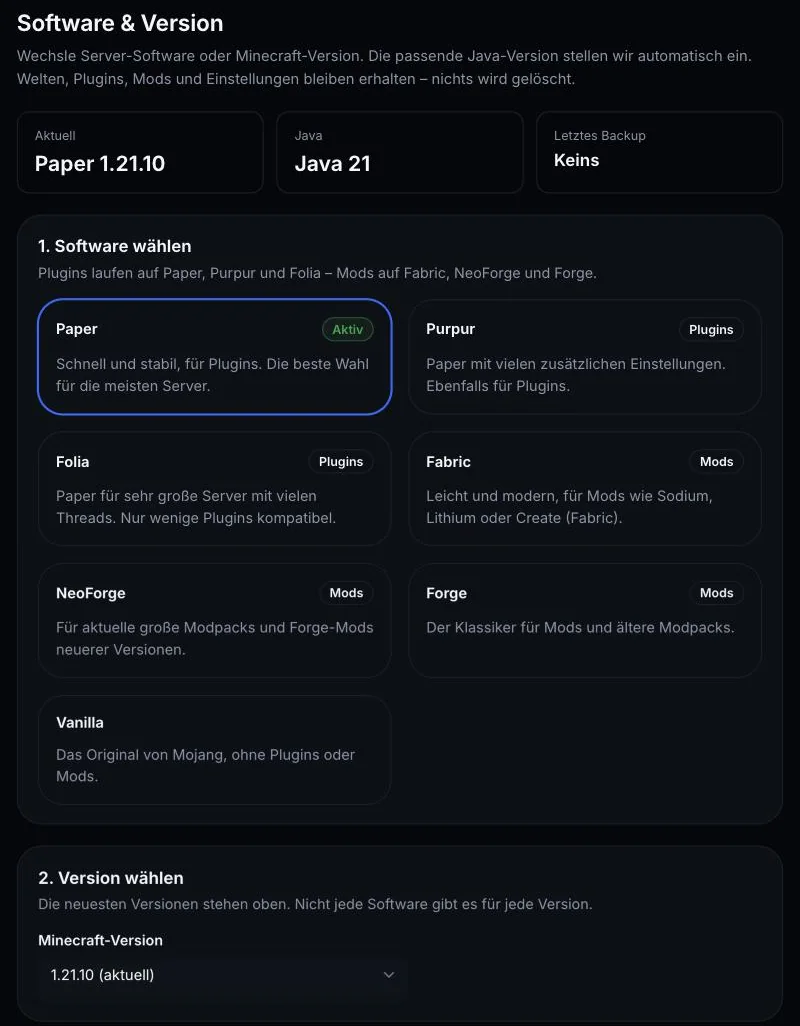
When the console shows "Done", the server is ready. Afterwards, under Version, you can see the new loader and Minecraft version.
4. Connect your players
All players need the same pack in the same version:
- Send your friends the pack's name and version, for example with a link to the Modrinth page.
- They install it in their launcher – for example in the Modrinth App, via search – and choose the same version.
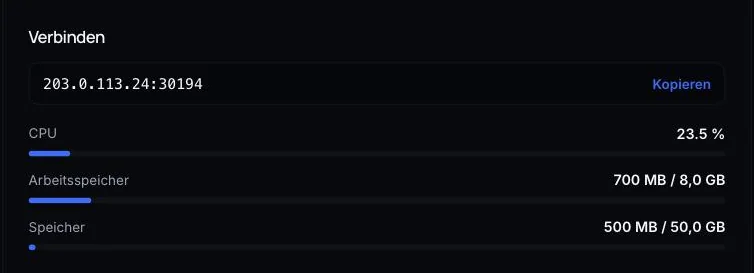
- Then they connect using the address from the Connect card in your Quick controls.
5. Update the pack
If a new version of the pack is released, Modpacks shows an Update badge on the installed pack. Click Aktualisieren (update) – the same installation step as above opens, with the new version preselected. Create a backup there first, then restart the server afterwards. Plan updates for a time when few players are online – afterwards, all players also need to install the new version.
You add your own mods in the Mods menu. The store there only shows mods that match the loader and Minecraft version. Afterwards, check the console to see that everything loads.
Common problems
„Für dieses Modpack gibt es keine Version, die wir automatisch installieren können“ (There is no version of this modpack that we can install automatically)
The pack only exists for Quilt or for snapshot versions. Supported are Fabric, NeoForge and Forge. Look for an alternative or a different version.
The server crashes on startup
Read the last lines in the console – usually they say which mod is missing or doesn't match. A common cause is too little memory: if the RAM runs full, the server stops and you get an email with the reason. You can get more RAM via Tarif wechseln (change plan) in the customer area. For version conflicts, Matching mod versions helps.
Players get "Mod mismatch" or missing mods
Client and server have different versions of the pack. Compare the version under Modpacks with the one in your friends' launcher.
I want to go back to the previous state
Restore the backup from step 2 under Backups in the panel. If you left Bisherige Mods behalten switched off, your old mods folder is also in the main directory, as mods-alt- with a date.
Further reading
Did this guide help? We are happy to help personally.