

Create and set up a Terraria server
With this guide, you set up your own Terraria server where your friends can join at any time via “Join via IP” – even when your PC is off. You set the world, difficulty and password in the panel, and you can bring an existing world along.
What you need
- Terraria (PC) for you and your co-players. The server and the game need the same version.
- Any plan: Terraria needs little memory (from 1 GB RAM). For large worlds or many players, more helps.
- No Steam token required.
- Optional: a world file (
.wld) you want to keep playing.
1. Choose Terraria when you buy
- Open the configurator and choose your plan.
- In the Game section, select the Terraria card and complete the order.
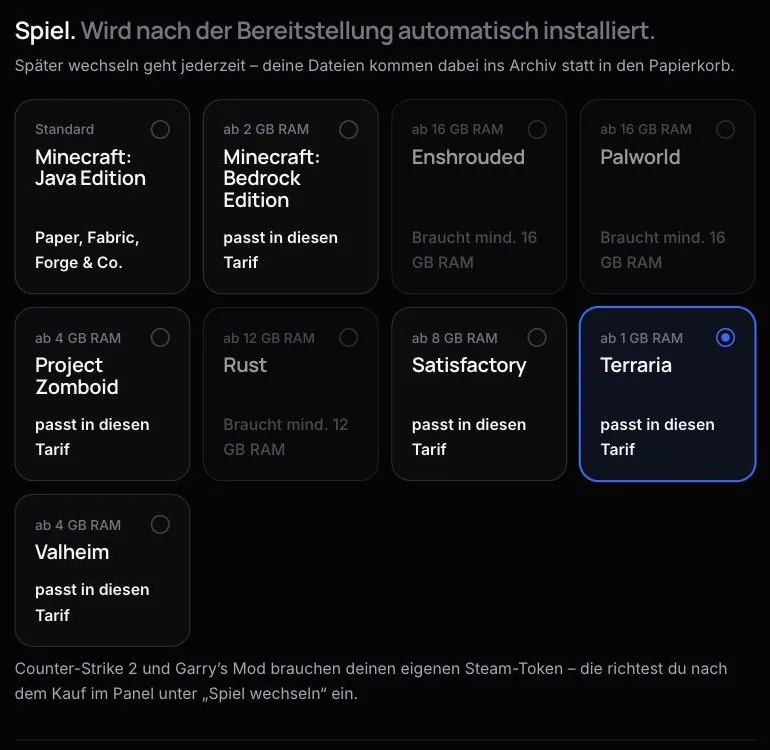
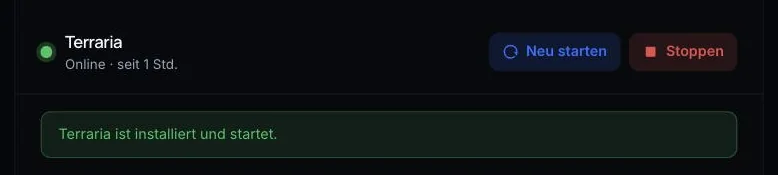
After provisioning, AeonHost installs the Terraria server, creates a world on the first start, and shows you in the Quick controls when everything is ready.
2. Set up the world and server
In the customer area, click Open in Panel on your server's page and choose Startup on the left. The Server variables are:
Server
- Max Players – maximum number of players, default 8.
- Password – password for joining. Empty means no password.
- MOTD – greeting shown when joining.
- NPCStream – fewer “jumping” enemies, but more network traffic.
0is off; the allowed range is 0 to 60.
World
- World Name – name of the world file, up to 20 characters.
- Difficulty –
0Classic,1Expert,2Master,3Journey. Default: Journey. - World Size –
1small,2medium,3large. - World Seed – starting value for a new world. Empty means random.
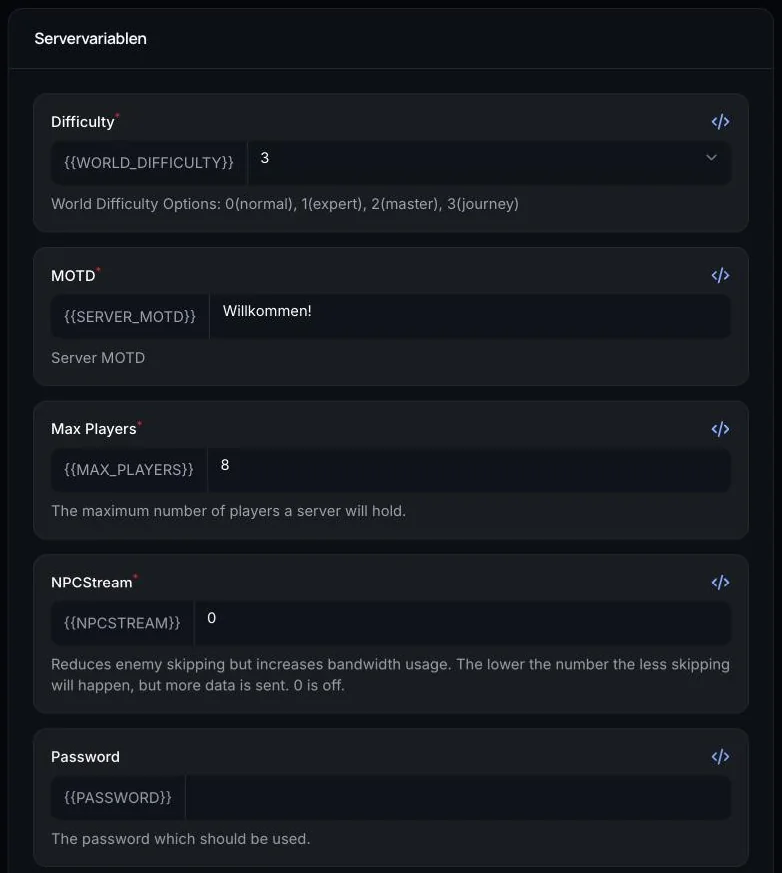
Here is how AeonHost works: the panel writes these values to the file serverconfig.txt on every start. So always change them under Startup and restart the server afterwards. If there is no world yet with the entered World Name, the server creates a new one – with the size, difficulty and seed from this page. For an existing world, size and difficulty stay as they are.
Want a second world? Enter a new World Name and restart. The old world is kept; you can bring it back at any time by entering its name.
3. Connect to the server
- In the Quick controls, copy the IP and port from the Connect card.
- Start Terraria, select Multiplayer and then Join via IP.
- Choose your character.
- Enter the IP, then the port from the Connect card.
- Enter the password if you have set one.
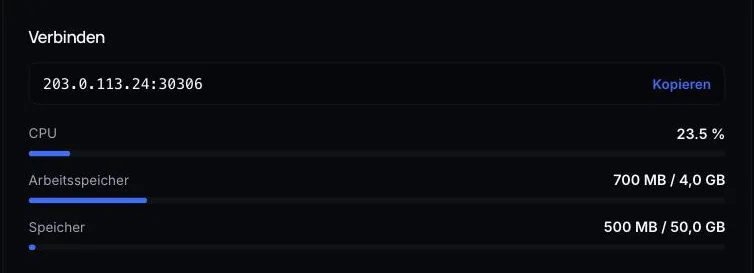
Terraria's default port is 7777. However, the port on your Connect card is always the one that counts.
4. Upload your own world
- Create a backup (step 6) and stop the server.
- In the panel, open Files and go into the folder
saves/Worlds. - Upload your
.wldfile. On Windows, you'll find it underDocuments\My Games\Terraria\Worlds. - Under Startup, enter the file name without
.wldin the World Name field – pay attention to upper and lower case. - Start the server.
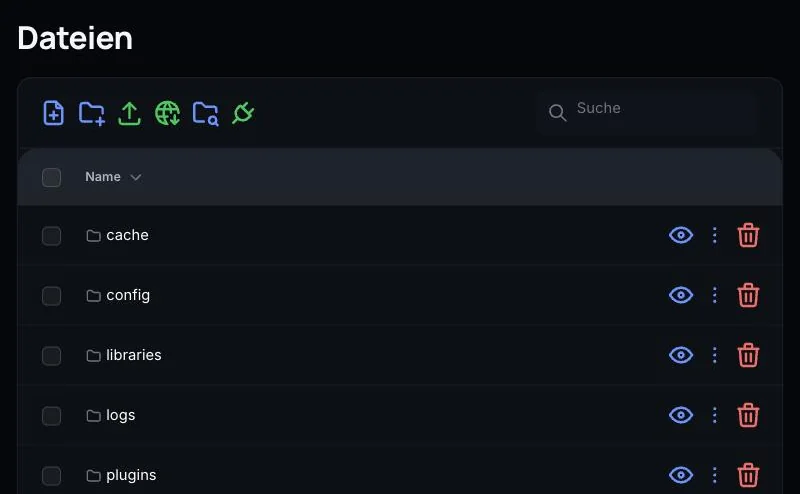
If the file is in the wrong place or the name doesn't match, the server creates a new world. More details: Getting a Terraria world onto the dedicated server.
5. Console commands
In the Console (in the Quick controls or the panel), you control the running server. Type commands without a /. The most important ones, according to the Terraria Wiki:
playing– shows who is online.say Text– message to all.kick Name– kicks a player out (they can rejoin).ban Name– bans a player.save– saves the world immediately.dawn,noon,dusk,midnight– sets the time of day.exit– saves and stops the server.
You can change the password, MOTD and player count in the console, but at the next start, the values under Startup apply again.
6. Backups and daily restart
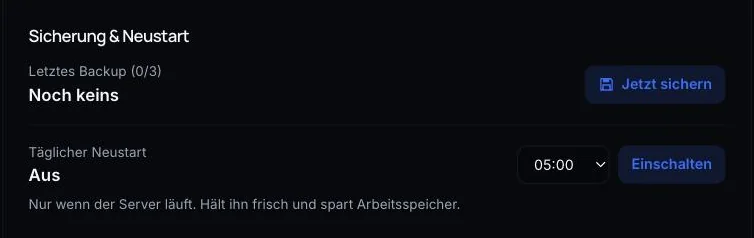
Terraria saves the world regularly on its own. In addition, back up the whole server with Back up now in the Quick controls or under Backups in the panel – especially before a boss fight, where something can go wrong, or before you upload a world.
Common problems
A new world starts instead of mine
The server can't find the file. Check that it is in saves/Worlds and that the World Name matches the file name without .wld exactly.
I changed the size or difficulty, but nothing happened
These values only apply to new worlds. For a new world, enter a new World Name.
“Version mismatch” when joining
The server and game have different versions. The Terraria version field is set to latest by default. After a Terraria update, reinstall the server in the panel under Settings so it loads the new version. Make a backup first; your worlds stay in the saves folder.
The password from the console no longer applies
After a restart, the panel writes the password from Startup back into the configuration. So change it there.
I want to use mods
This server runs Terraria without mods (vanilla). For mods, you need tModLoader. To learn the difference, see Vanilla or tModLoader?.
Further reading
Did this guide help? We are happy to help personally.