

Create and set up a Satisfactory server
With this guide, you continue building your factory on your own Satisfactory server – reachable around the clock, even when you're offline. You choose the game when you buy, AeonHost installs it and sets up both ports. Then you claim the server in the game.
What you need
- Satisfactory for you and your co-players.
- A plan with at least 8 GB RAM. For large factories or more than four players, the Satisfactory Wiki recommends 16 GB.
- Optional: a save game you want to keep playing.
1. Choose Satisfactory when you buy
- Open the configurator and choose your plan.
- In the Game section, select the Satisfactory card and complete the order.
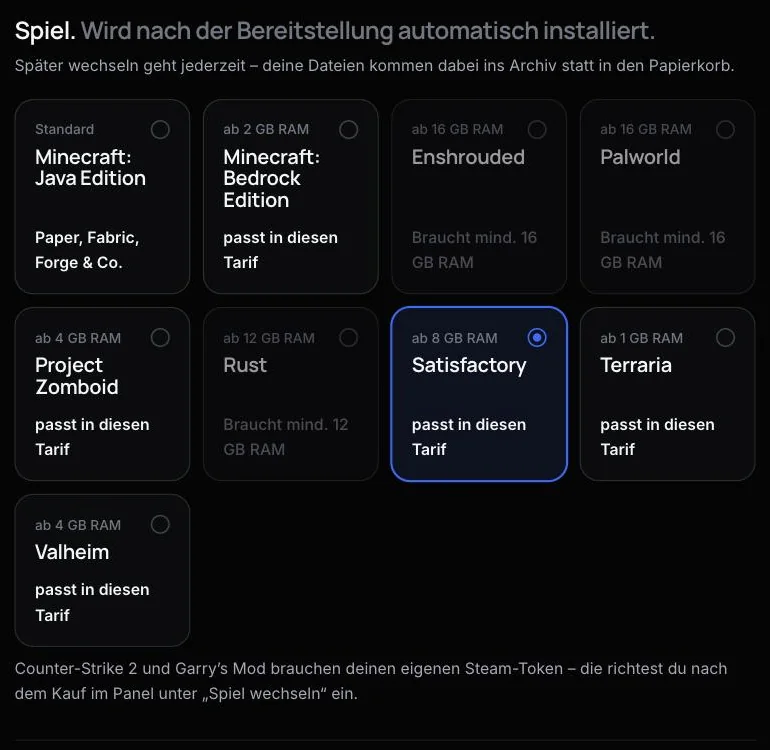
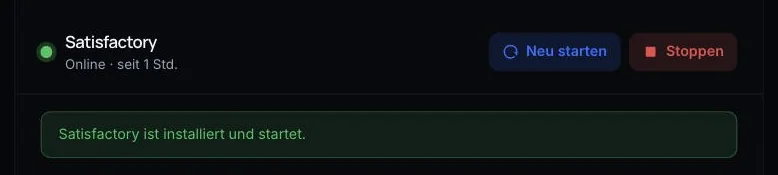
After provisioning, AeonHost installs the dedicated server and starts it. The Quick controls in the customer area show you when everything is ready.
2. Ports – AeonHost takes care of this for you
Since version 1.1, Satisfactory needs two ports:
- the game port (TCP and UDP) – all players connect through this one,
- the Reliable Messaging Port (TCP) – for establishing the connection. The game itself tells the clients about this one.
AeonHost automatically assigned both ports during setup and used them to start the server. You can see them under Network in the panel. The second one is marked with the label „Satisfactory · RELIABLE_PORT“ (reliable port).
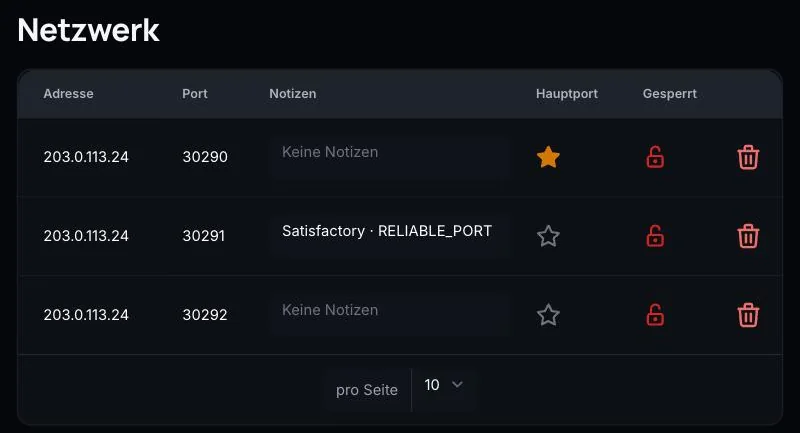
Important: you and your friends always connect using the game port from the Connect card, never the Reliable port.
3. Claim the server in the game
Before the server can start a game, someone has to claim it. You only do this once:
- In the Quick controls, copy the address (IP and port) from the Connect card.
- Start Satisfactory and open the Server Manager from the main menu.
- Click Add Server and enter the IP and port.
- Give the server a name and set an admin password. This makes the server yours.
- Create a new game or upload a save game (step 5).
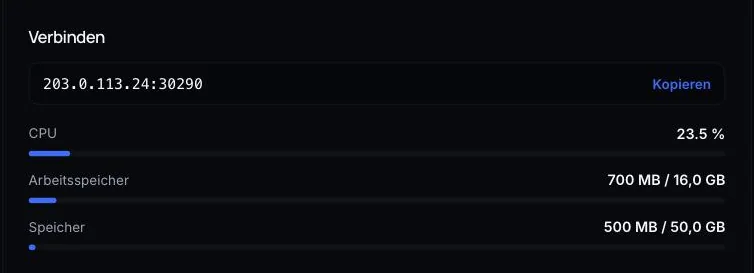
Keep the admin password safe. It isn't shown anywhere in the panel, because you set it in the game.
To make sure not everyone can join, also set a player password (Player password protection) in the server settings in the Server Manager. By default, it is off. More: Access and login on the Satisfactory server.
4. The fields under “Startup”
In the panel under Startup, you'll find the settings that AeonHost writes to the configuration files on every start:
- [Experimental] Max Players – default 4. More is possible, but according to the developers, it is at your own risk performance-wise.
- Number of Rotating Autosaves – how many automatic saves the server keeps. Default 3.
- Automatic Updates – checks for updates on start. Leave it on so the server and game stay compatible.
- [Advanced] Branch Name – leave empty for the standard version,
experimentalfor the Experimental branch. Only change this if all players are on the same branch. - [Repair] Validate Server Files – checks all server files on the next start. Only turn this on if something seems broken.
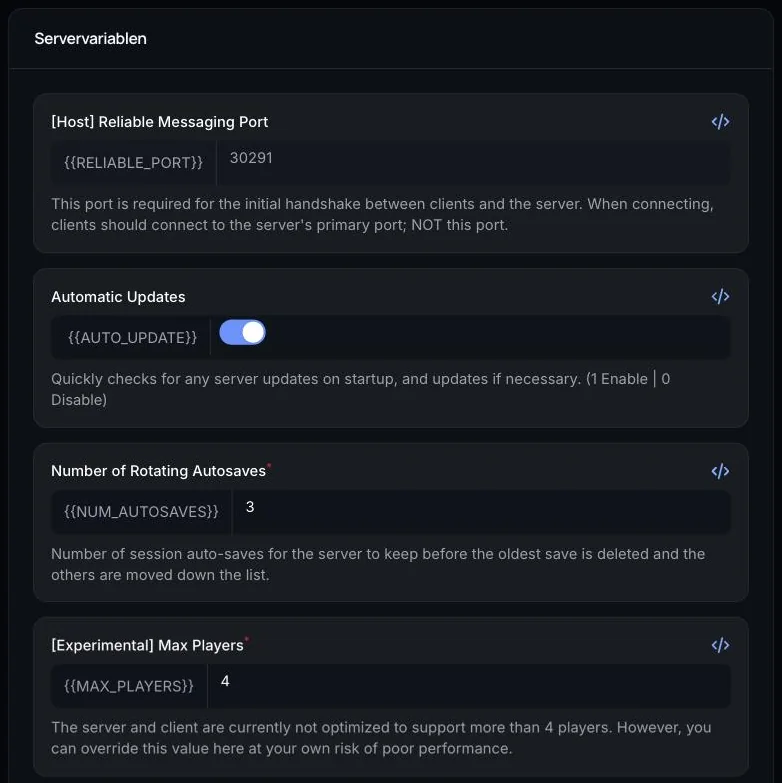
The panel writes these values to Game.ini and Engine.ini on every start. So change them here, not in the files. After a change, restart the server.
5. Upload your own save game
The easiest way is in the game: open your server in the Server Manager, switch to the Manage Saves tab and upload your local save game. You can then load it there.
If a factory is already running on the server, make a backup first (step 6). Other methods, for example via the file manager, are shown in Getting a Satisfactory save game onto the server.
6. Backups and daily restart
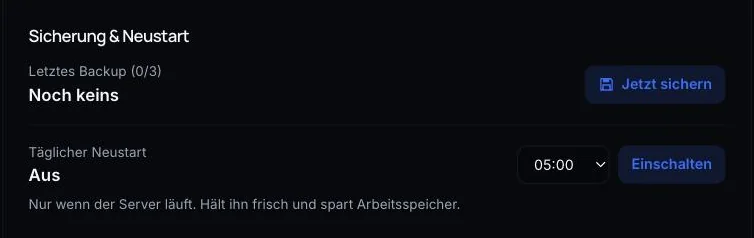
Satisfactory creates autosaves on its own. In addition, back up the entire server with Back up now in the Quick controls or under Backups in the panel. On the same card, set up a daily restart – together with Automatic Updates, this keeps the server up to date.
Common problems
Players are stuck on the loading screen
Connect using the game port from Connect, not the Reliable port. Check under Network that both ports are present, and restart the server. Details: Satisfactory ports and connection.
The server shows as offline in the Server Manager
After starting, wait about a minute; the first start takes longer because Steam downloads the files. Check in the Quick controls whether the server is running, and check the IP and port.
“Version mismatch” when joining
The server and game have different versions or branches. Leave Automatic Updates on, check the Branch Name and restart. More: Resolving a Satisfactory version conflict.
I've forgotten the admin password
According to the Satisfactory Wiki, you reset it by deleting the file ServerSettings.<Port>.sav. On AeonHost, it is under Files in .config/Epic/FactoryGame/Saved/SaveGames; <Port> is your game port. Stop the server beforehand and make a backup. This also resets the server name and the player password – your save games are kept. Afterwards, claim the server again.
With many players, things get slow
More than four players is experimental. Keep an eye on the RAM display on the Connect card. If memory stays full, you'll get an email; more RAM is available in the customer area via Change plan.
Further reading
Did this guide help? We are happy to help personally.