

Create and set up an Enshrouded server
With this guide, you'll have your own Enshrouded server running in a few minutes, so you can play with friends – without your PC having to stay on. You choose the game when you buy, AeonHost installs it automatically, and afterwards you only need to set a name and password.
What you need
- Enshrouded on Steam for you and your fellow players.
- A plan with at least 16 GB RAM. Enshrouded needs a lot of memory; in smaller plans, the game is locked in the configurator.
- No Steam token and no Steam account for the server: the dedicated server (Steam app 2278520) is installed anonymously.
1. Choose your plan and game
- Open the configurator and choose a plan with 16 GB RAM or more.
- In the Game section, choose the Enshrouded card. If it says “Needs at least 16 GB RAM”, the plan is too small.
- Complete the order.
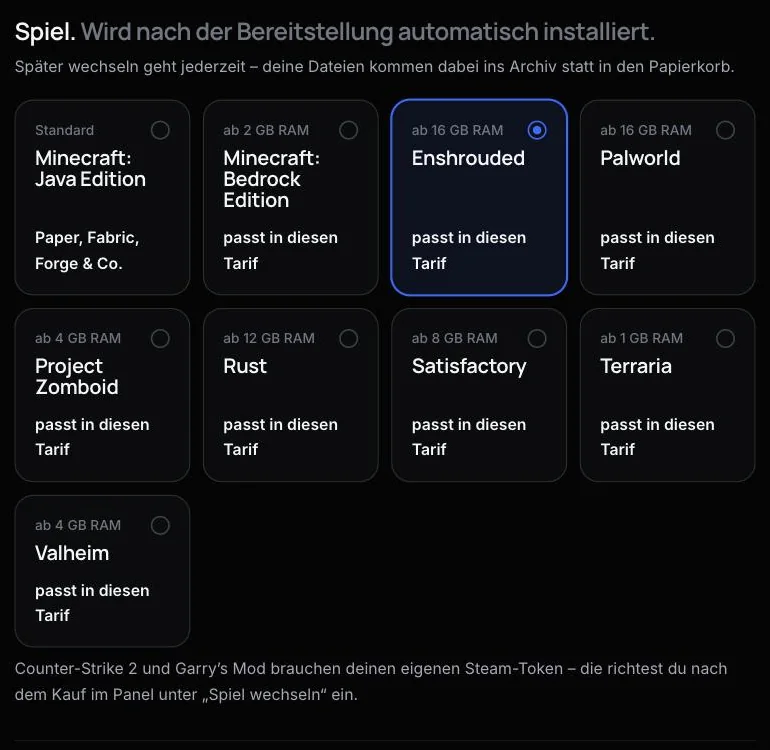
After provisioning, AeonHost installs Enshrouded automatically. You can follow the progress in the customer area, on your server's page. As soon as it says “Enshrouded ist installiert und startet” (Enshrouded is installed and starting), the server is ready.
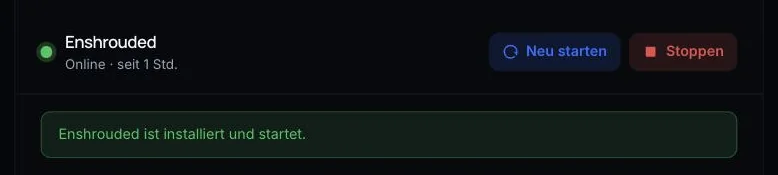
The first start takes a little longer, because Steam downloads the game files and the server generates its world.
2. Set the server name and password
Settings are changed in the panel. On your server's page in the customer area, click Open in Panel and choose Startup on the left. Under Server variables, you'll find:
- Server Name – the name your server has in the server list.
- Server Password – the password for joining. Leave it empty if anyone may join.
- Max Players – maximum number of players, default 16.
- Auto Update – downloads the latest server version at startup. Keep it on so that server and game stay in sync.
- Steam Query Port – assigned automatically from your server's ports during setup. Don't change it.
- Validate – checks all server files via Steam at the next start. Only turn it on if something seems broken.
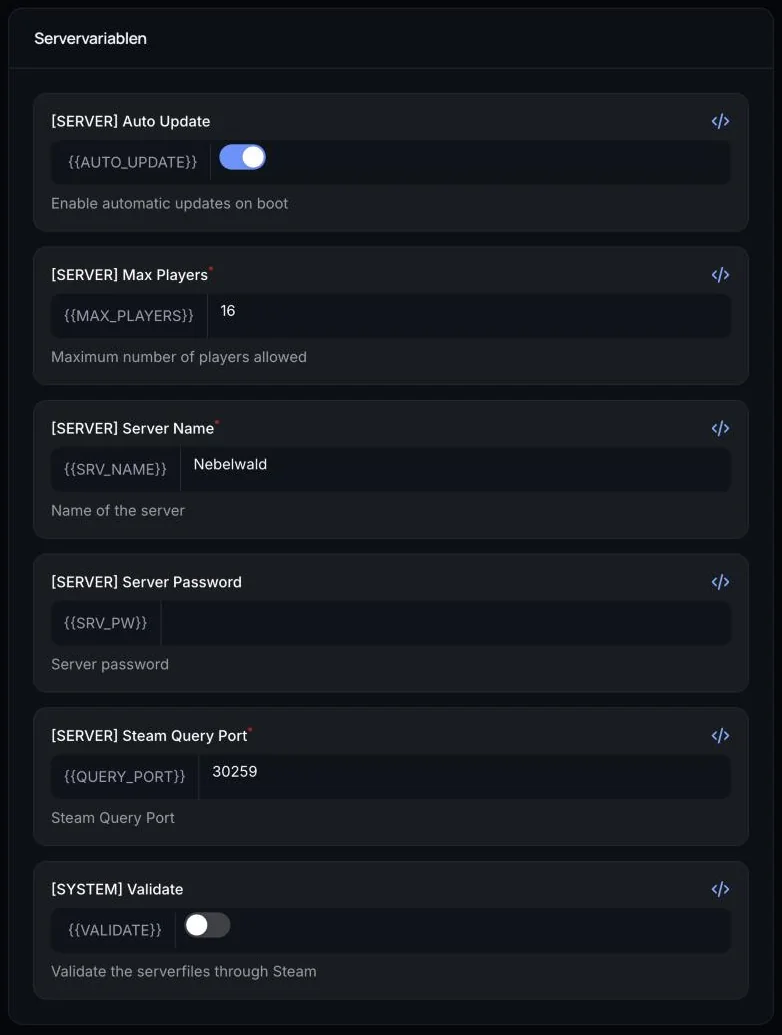
Restart the server after every change. Important: on every start, the panel writes name, password, player count and ports into the file enshrouded_server.json. If you change these values directly in the file, they will be overwritten at the next start – so always change them under Startup.
3. Connect to the server
- Start Enshrouded and choose Play, then Join.
- Search the server list for your Server Name and join.
- Enter the password if you've set one.
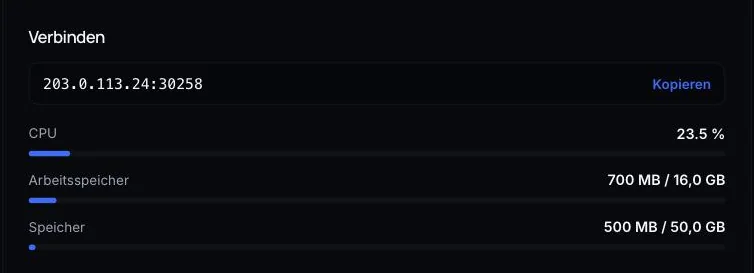
The Connect card in Quick controls shows your server's address (IP and port). You need it, for example, to add the server to Favorites in Steam or when you contact support.
4. Ports – what AeonHost takes care of
Every server gets three ports. For Enshrouded, AeonHost sets the game port and the query port itself during installation; you don't need to open anything. You can see all ports under Network in the panel. If you ever need more, you can add them there.
5. Back up and transfer save games
Enshrouded stores the world in the savegame folder in the server's main directory.
- Back up: In Quick controls, click Back up now, or create a backup under Backups in the panel. Do this before every major update.
- Upload your own world: Stop the server, upload your save files to the
savegamefolder under Files or via SFTP, and start the server again. Keep a copy of the existing files beforehand.
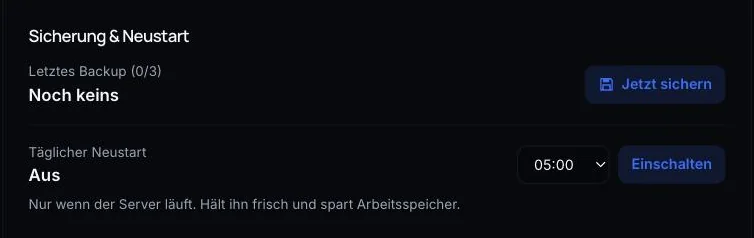
A daily restart (on the same card) keeps the server fresh and installs updates when Auto Update is active.
6. Let friends co-manage
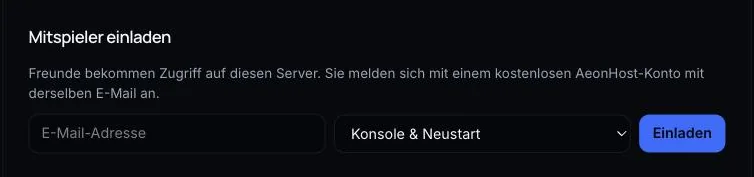
Would you like a friend to be able to start or restart the server too? Invite them under Invite co-players using their email address. With Console & restart, they can operate the server; with Co-manage, they can also change files, backups and settings. They sign in with a free AeonHost account.
Common problems
My server doesn't appear in the server list
Check in Quick controls whether the server is online. After an update, the first start takes longer. Then search for the exact name from Startup. If you've just changed the name, restart the server.
Players can't get in with the password
Compare the password with the Server Password field under Startup. If it was changed in enshrouded_server.json, the panel overwrote it with the field value at the next start.
The server is full even though few people are playing
Raise Max Players under Startup and restart. Keep an eye on the RAM display on the Connect card.
The download was interrupted during installation
Steam occasionally cancels downloads when many servers are downloading at the same time. The panel detects this and reports it. Simply restart the reinstall from Settings in the panel a few minutes later – your save games stay intact.
The server lags or crashes
If memory stays permanently full, AeonHost sends you an email with a note about upgrading. If the server crashes, the system also notifies you. You can get more RAM in the customer area via Change plan.
Further reading
Did this guide help? We are happy to help personally.