

Create and set up a Palworld server
With this guide, you get your own Palworld server that keeps running even when you're offline. You set up the world conveniently with a form, manage players without commands, and install mods with one click.
What you need
- Palworld for you and your players.
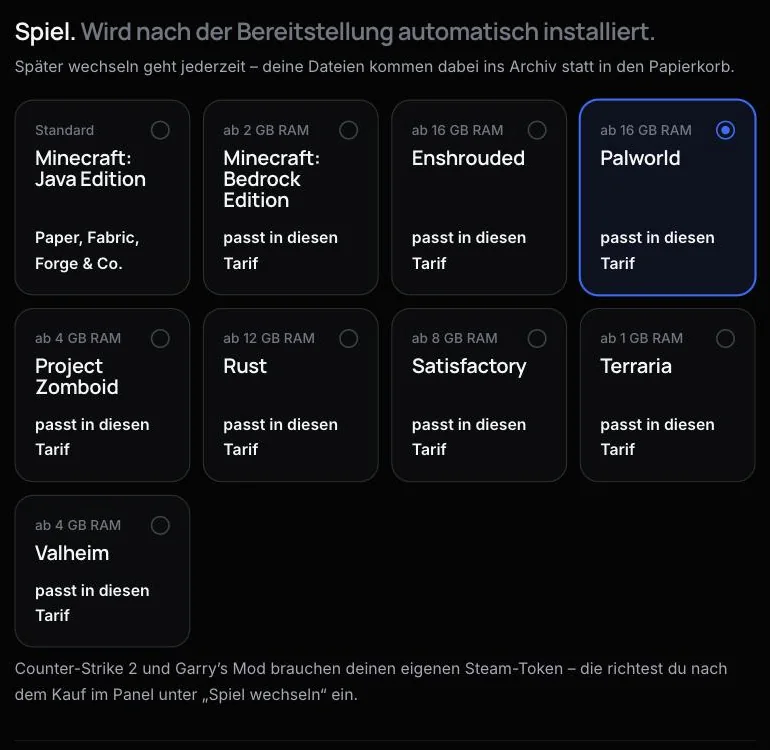
- A plan with at least 16 GB RAM. Palworld needs a lot of memory; in smaller plans, the game is locked in the configurator.
- Optional: mods as a
.pakfile.
1. Choose Palworld when you buy
- Open the configurator and choose a plan with 16 GB RAM or more.
- In the Game section, choose the Palworld card. If it says “Needs at least 16 GB RAM”, the plan is too small.
- Complete the order.
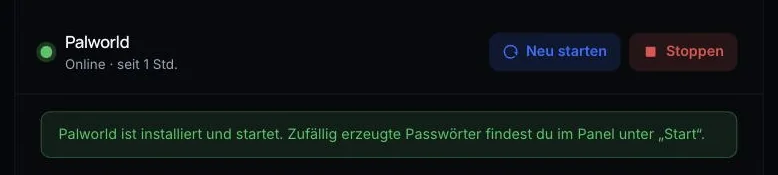
After provisioning, AeonHost installs Palworld and starts the server. A random Admin Password is generated in the process. Quick controls in the customer area show you when everything is ready.
2. Passwords and crossplay under “Startup”
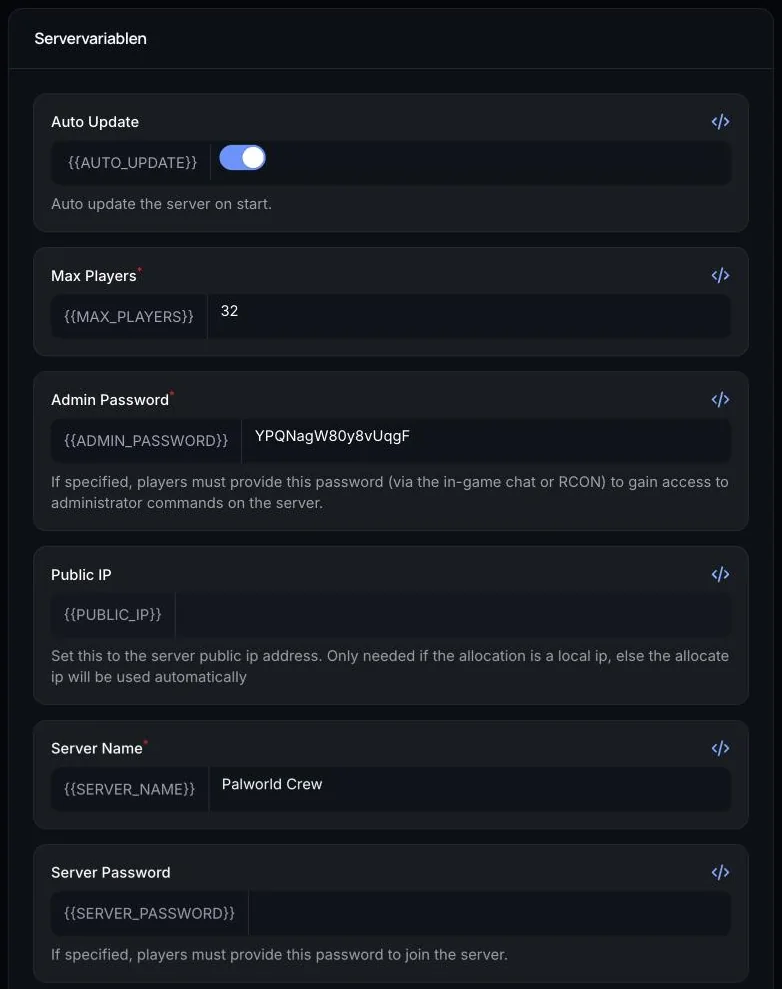
On your server's page in the customer area, click Open in Panel and choose Startup on the left. These are the settings the panel applies on every start:
- Server Password – optional. If it's set, players need it to join. Empty means no password.
- Admin Password – gives you admin rights in the game. Keep it to yourself.
- Crossplay Platforms – which platforms may join. Valid values are
Steam,Xbox,PS5andMac, separated by commas. Default: all four. - Auto Update – downloads the latest server version at startup. Keep it on so that server and game match after a Palworld update.
Both passwords must be 1 to 30 characters long and may only contain letters, numbers, - and _. The panel rejects spaces and special characters.
Restart the server after a change; only then does it take effect.
3. Connect to the server
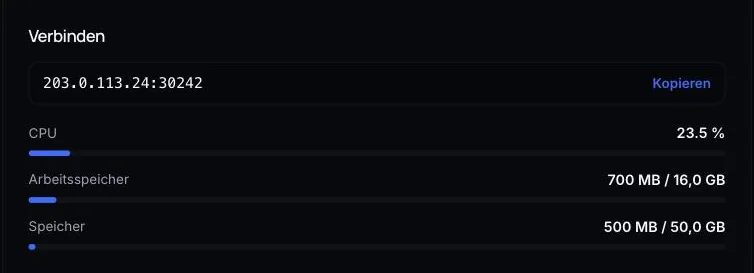
- In Quick controls, copy the address (IP and port) from the Connect card.
- Start Palworld and choose Join Multiplayer Game.
- Enter the address in the input field at the bottom of the server list and connect.
- Enter the server password if you've set one.
If friends play on Xbox or PS5, those platforms must be listed under Crossplay Platforms. More on this: Palworld crossplay platforms.
4. Configure the world – without an INI file
In the panel menu, open Einstellungen (settings form) to reach the Welt-Einstellungen (world settings). The form reads the file PalWorldSettings.ini and writes it back when you save. The options are divided into four sections:
- Server – server name, description, maximum players (up to 32), player list in the menu and the game's additional world backups.
- Fortschritt (progress) – experience, catch rate, number of wild Pals, yield, work speed of the Pals and how fast day and night pass.
- Kampf & Überleben (combat & survival) – what you lose on death, PvP, raids on bases, hardcore mode, damage and hunger.
- Gilden & Basen (guilds & bases) – players per guild, bases per guild, workers per base and more.
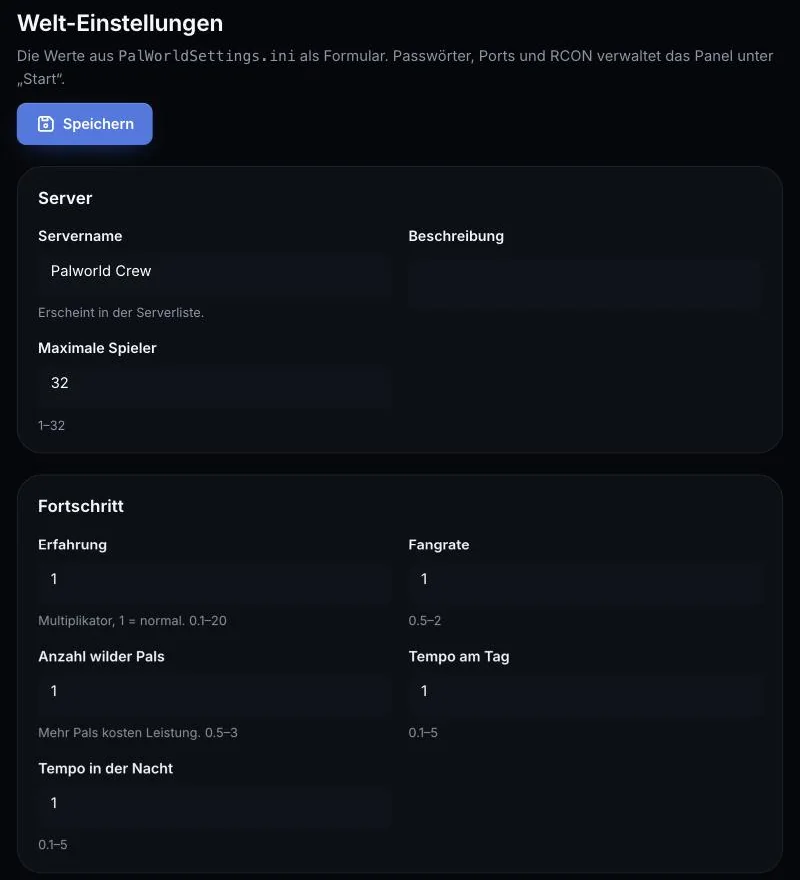
The allowed range is shown under each field. Click Speichern (save) and restart the server. Server name, description and player count are then also saved automatically to the variables under Startup, so they aren't overwritten at the next start. The form deliberately doesn't show passwords, ports or RCON.
What the individual values do is explained in Palworld server settings.
5. Manage players
In the Spieler (Players) menu, you can see who is online right now. Without chat commands, you can:
- kicken (kick) or sperren (ban) a player, and later entsperren (unban) them again,
- use Welt speichern (save world) to back up the world immediately,
- send a Nachricht an alle (message to all), for example “Restart in 5 minutes”.
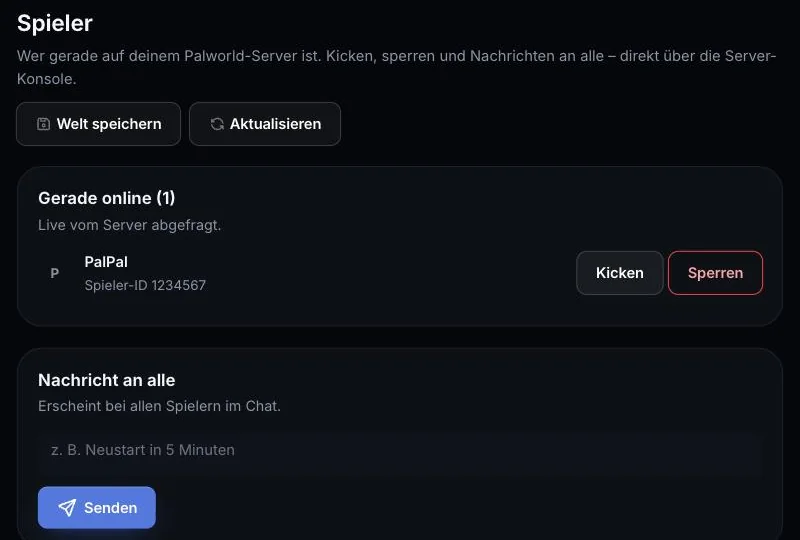
This page communicates with the server via RCON. AeonHost sets this up itself; the server just needs to be running. If you'd rather work in the game, open the chat and enter /AdminPassword, followed by your admin password. After that, the official admin commands are available to you. Background: Palworld admin and RCON.
6. Install mods
- Upload the
.pakor.zipfile to the main folder under Files. - Open the Mods menu. Under Mod installieren (install mod), the file appears – click Installieren (install).
- Restart the server.
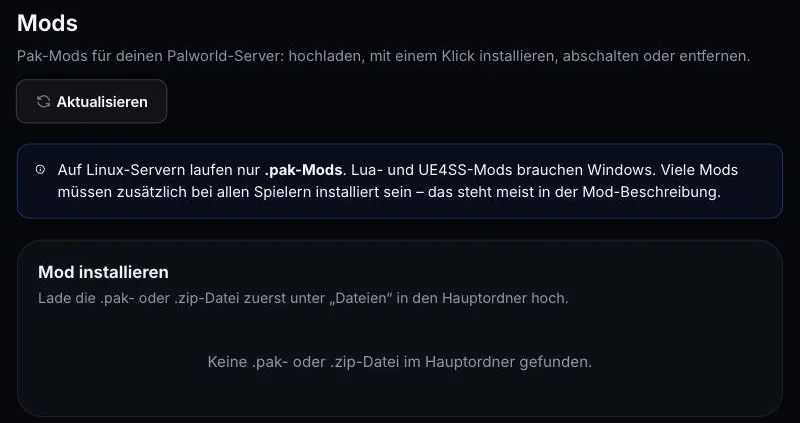
Installed mods are stored in Pal/Content/Paks/~mods. You can disable or remove them there at any time. Important: on Linux servers, only .pak mods run. Lua and UE4SS mods require Windows. Many mods must also be installed by all players – this is usually stated in the mod description. Make a backup before each new mod.
7. Backups
In Quick controls, click Back up now, or create a backup under Backups in the panel – ideally before mods, major settings changes and Palworld updates. On the same card, you can set a daily restart.
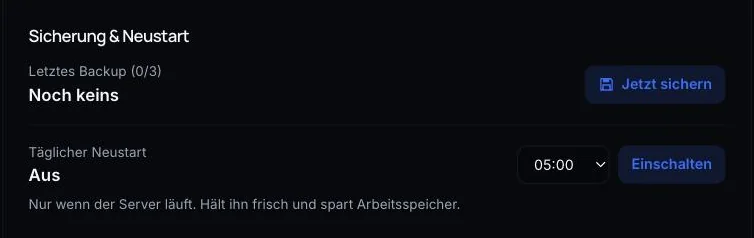
How to restore a save game: Backing up and restoring a Palworld save.
Common problems
I can't get onto the server
Check the address on the Connect card and whether the server is online. If a Server Password is set, you need to enter it. After a Palworld update, the server must also be up to date – keep Auto Update on and restart.
A friend on Xbox or PS5 can't get in
Their platform is missing from Crossplay Platforms under Startup. Add it, for example Steam,Xbox,PS5,Mac, and restart the server.
The player list stays empty
The server must be fully started for RCON to respond. Wait one to two minutes after starting, then click Aktualisieren (refresh).
My settings have no effect
After Speichern, you need to restart the server. You can edit values in PalWorldSettings.ini directly, but the form is safer: it checks the allowed ranges.
A mod doesn't load
Check whether it's a .pak mod and whether you restarted after installing it. Lua and UE4SS mods don't run on the Linux server.
Further reading
Did this guide help? We are happy to help personally.